How to back up the iPhone and iPad on iTunes
Step # 1. Connect your iPhone to the # 39 computer and launch iTunes.

Step # 2. When you are prompted to trust this computer, press Trust in the pop-up window of your iPhone.

Step # 3. Click on your iPhone in the left menu

Note: As mentioned above, the iTunes backup does not usually include any personal information like saved passwords. If you want to save this information, you must encrypt the backup. To do this, select the Encrypt [device] backup dialog box and set a password.
Step # 4. Finally, click "Back up now."
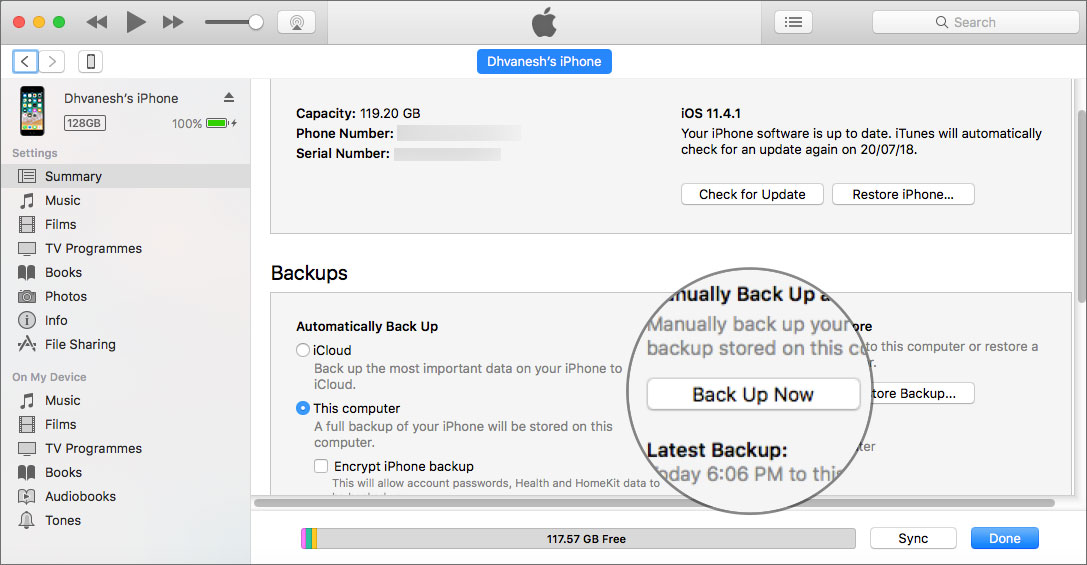
Then, wait and let the backup finish properly. Once done, you can check the date and time of the last backup on the screen Summary
That's about it!If you ever lost or accidentally deleted data from your iOS device, you can use the professional Gihosoft iPhone Data Recovery software to retrieve important data from iPhone, iPad or iPod Touch even without backup.
Jihosoft iPhone Backup Extractor Extract and recover all types of data from iPhone backup files, such as camera roll photos, videos, SMS, contacts, reminders, WhatsApp, and etc.

No comments:
Post a Comment